TECTechnology and Productivity
Learning Web Design: Free, Standards-Based Resources
A practical path for learning HTML, CSS and web accessibility from free, authoritative sources such as MDN, W3C and web.dev, with tools to test your own pages.
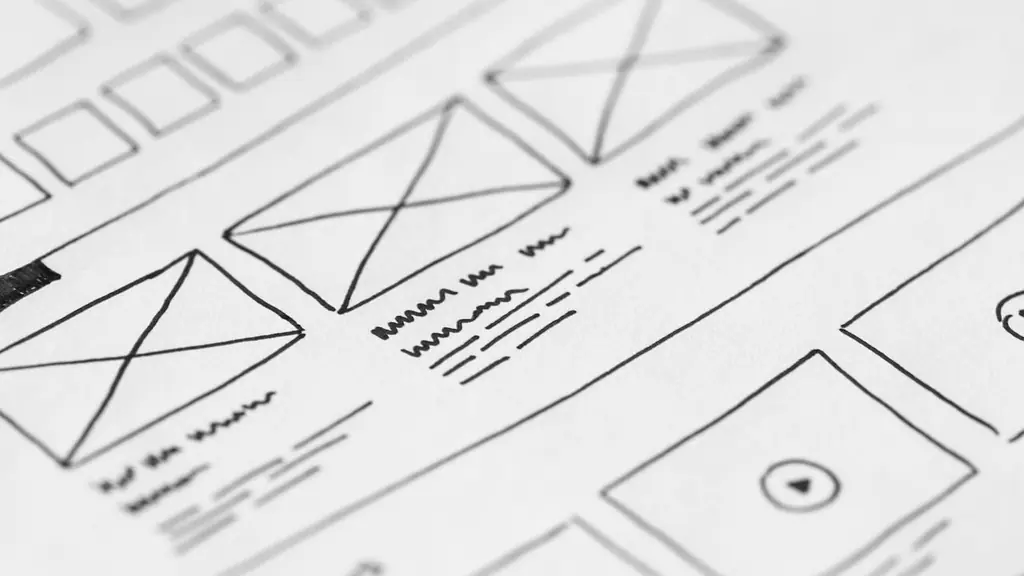
Imagine a student who wants a simple site for a robotics team: a home page, a page of photos, a contact form. A website builder could do it in an afternoon, but the student wants to understand what is actually happening, so that the next site is better and the skills carry into a class or a job. The good news is that the best material for learning web design is free and written by the organizations that define how the web works.
This page lays out a sensible learning path, explains why "standards-based" matters, introduces accessibility from the first day, and lists free tools for checking your work. It is aimed at middle school students through adult beginners, and at teachers looking for reliable curricula.
Why learn from standards-based sources
Web pages are built from three layers. HTML describes what content is: a heading, a paragraph, a list, a link, a form. CSS controls how it looks: color, type, spacing and layout across screen sizes. JavaScript adds behavior. Browsers follow published specifications for each layer. HTML is maintained as a "living standard" by the WHATWG, a group of browser makers, and CSS and accessibility guidelines are developed at the World Wide Web Consortium (W3C).
Tutorials that follow those specifications teach habits that keep working as browsers change. Older or careless tutorials still circulate with outdated advice: tables used for page layout, fixed-width pages that break on phones, text baked into images, or clickable div elements that keyboards cannot reach. A useful test for any tutorial is whether it explains why a piece of markup is correct, not just that it "works" in one browser.
A learning path that works
- Set up and build one ugly page. Install a free code editor, create a file called
index.html, add a heading and a paragraph, and open it in a browser. MDN's "Getting started" modules walk through exactly this, including how the web and browsers work. - Learn semantic HTML properly. Headings in order, lists, links, images with alternative text, tables for data only, and forms with labels. This is the foundation of accessibility and search visibility, and it is where most beginners cut corners.
- Learn CSS in stages. Start with selectors, the box model, color and typography; then layout with flexbox and grid; then responsive design with media queries. Google's web.dev "Learn CSS" course and MDN's CSS modules cover these in order.
- Build small projects. A recipe page, a personal profile, a photo gallery, a survey form. freeCodeCamp's Responsive Web Design certification and The Odin Project's curriculum are both project-based.
- Test as you go. Validate your HTML, check color contrast, try your page with only a keyboard, and view it on a phone.
- Publish. Static hosting services such as GitHub Pages can serve plain HTML and CSS directly from a code repository, which also teaches basic version control.
- Add JavaScript last. Once the structure and styling are solid, behavior is much easier to add without breaking either.
Tip: Keep a "reference, then tutorial" habit. When a tutorial uses an element or property you don't know, look it up in MDN's reference pages before copying it. Over time you build understanding instead of a collection of snippets.
Accessibility from the first day
Accessibility means people can use your site whether they see, hear, move or process information differently: people using screen readers, keyboard-only users, people with low vision or color blindness, and anyone on a small screen in bright sunlight. The international benchmark is the W3C's Web Content Accessibility Guidelines (WCAG). The current version, WCAG 2.2, was published in October 2023. Its success criteria are grouped under four principles (content must be perceivable, operable, understandable and robust) and come in three conformance levels: A, AA and AAA.
U.S. law points to the same ideas. The Department of Justice's guidance on the Americans with Disabilities Act describes common barriers such as poor color contrast, missing alternative text, uncaptioned video, unlabeled form fields and pages that cannot be used with a keyboard, and it refers to WCAG and Section 508 as helpful references. Federal agencies follow the Section 508 standards, and Section508.gov publishes practical testing guides that are useful far beyond government.
Checklist: one `h1` per page and headings in order; meaningful alternative text on informative images (and empty alt text on decorative ones); a visible label for every form field; enough contrast between text and background; no information conveyed by color alone; every control reachable and usable with the Tab and Enter keys; visible focus outlines; captions on video; links whose text makes sense out of context; a page that still works when zoomed to 200 percent.
Free tools for checking your work
| Check | Tool | What it catches |
|---|---|---|
| HTML validity | W3C Markup Validation Service | Unclosed tags, misnested elements, invalid attributes |
| CSS validity | W3C CSS Validation Service | Typos and invalid property values |
| Color contrast | WebAIM Contrast Checker | Text and background combinations that fail WCAG |
| Browser support | Can I use | Whether a feature works in the browsers your audience uses |
| Keyboard access | Your own keyboard | Missing focus states, unreachable controls |
| Small screens | Your browser's device mode | Layouts that overflow or text that is too small |
Automated checkers find only part of the problems. Always do a manual pass with a keyboard, and if you can, listen to a page with a screen reader built into your operating system.
Try it: Take a page you have built and unplug your mouse. Can you reach every link and button with Tab, see where you are, and submit the form? Then run the page through the HTML validator and the contrast checker and fix the first three problems each reports.
Using images, fonts and code responsibly
Most beginner sites borrow images, fonts and code snippets. Use material that is openly licensed or that you created, and credit it as the license requires; our guide to copyright, fair use and Creative Commons for students explains how. If your site collects any information, such as a contact form, ask what you really need and avoid collecting anything about children without adult involvement; understanding online privacy covers the basics. For structured courses beyond web design, see free online courses and open educational resources explained.
Safety: Students publishing a site should not post their full name, school, home address, schedule or photos of identifiable classmates without permission. Teachers can have younger students publish to a class-only or school-managed space instead of the open web.
Recommended resources
- Learn web development — A structured beginner-to-comfortable course in HTML, CSS, JavaScript and accessibility, with skill tests and challenges; teachers can use the modules directly (MDN Web Docs, Mozilla; free, openly licensed).
- Accessibility on the web — MDN's core module on accessible HTML, CSS and JavaScript, WAI-ARIA and mobile accessibility (MDN Web Docs; free).
- Learn HTML and Learn CSS — Two clear, modern courses from Google's web.dev team, with short modules on each topic; good companions to MDN (web.dev; free).
- Responsive Web Design Certification — An interactive, project-based HTML and CSS course ending in a free certification; an account is needed to save progress and claim the certificate (freeCodeCamp, a donor-supported nonprofit; free).
- The Odin Project — A free, open-source full-stack curriculum with HTML and CSS courses and an active community for help; best for motivated teens and adults (The Odin Project; free).
- WCAG 2 Overview — The W3C's explanation of the Web Content Accessibility Guidelines, versions and conformance levels, with links to quick references and tutorials (W3C Web Accessibility Initiative; free).
- WebAIM — Plain-language articles on accessible design, plus free tools such as the Contrast Checker (WebAIM, Utah State University; free).
- Section508.gov — Federal accessibility guidance, testing methods and content-creation guides for documents, video and the web (U.S. General Services Administration; free).
- Guidance on Web Accessibility and the ADA — The Justice Department's explanation of how the ADA applies to websites and of common barriers to avoid (U.S. Department of Justice; free).
- HTML Standard — The specification itself; too dense for a first read, but the authoritative answer when tutorials disagree (WHATWG; free).
- Can I use — Up-to-date tables showing which browsers support each HTML, CSS and JavaScript feature (caniuse.com; free).
- U.S. Web Design System — An open-source design system of accessible, mobile-friendly components used on federal websites; useful for studying well-documented patterns (U.S. General Services Administration; free).
- GitHub Pages — Hosting for websites served directly from a GitHub repository, a common first place to publish a static HTML and CSS site; requires a GitHub account (GitHub; check current plan terms).
Sources
- Learn web development, MDN Web Docs, Mozilla
- WCAG 2 Overview, W3C Web Accessibility Initiative
- HTML Standard, WHATWG
- Guidance on Web Accessibility and the ADA, U.S. Department of Justice
- Section508.gov, U.S. General Services Administration