TECTechnology and Productivity
Organizing Research: Note-Taking Systems and Free Tools
Keep research under control with Cornell notes, an annotated bibliography, a free reference manager such as Zotero, and file names that sort themselves.
Three weeks into a research paper on the history of public libraries, a typical folder looks like this: fourteen browser tabs left open "for later," a document called notes FINAL (2).docx, a few PDFs named download.pdf, and a great quote whose source is now a mystery. None of that is a research problem. It is an organization problem, and it costs hours at exactly the moment a deadline is close.
The fix is not a single app. It is a small system with three parts: a way to take notes that turns reading into understanding, a place to keep track of every source with its citation details, and a naming scheme so files can be found again. This guide shows how to set up each part with methods taught by university learning centers and tools that cost nothing.
Part one: take notes that do some of the thinking for you
Copying sentences from a source feels productive but leaves you with a pile of other people's words. Good notes compress, connect and question. Two methods work especially well for research.
The Cornell system
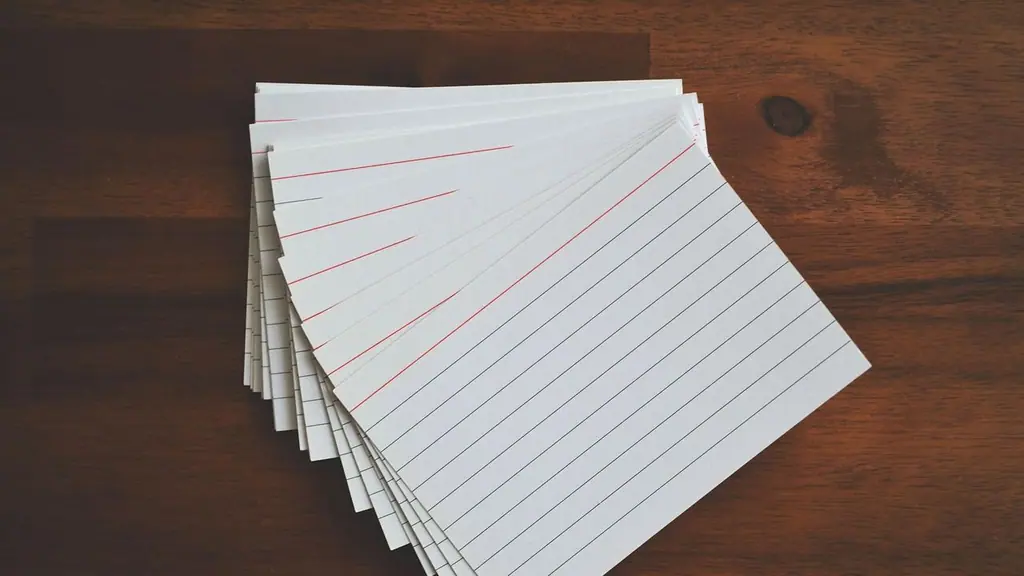
The Cornell method was developed by Walter Pauk, a Cornell University education professor, and described in his book How to Study in College, as Cornell's Learning Strategies Center notes. James Madison University's learning center gives a clear version of the page layout:
- Notes column (right, about 6 inches wide): what you record while reading or listening, in short phrases, abbreviations and lists.
- Cue column (left, about 2.5 inches wide): filled in afterward with keywords, questions and diagrams that point to the notes beside them.
- Summary (bottom 2 inches): a few sentences in your own words capturing the main ideas of the page.
The method has five steps: record the material; identify the main questions or ideas in the cue column; recite by covering the notes column and explaining each cue aloud; reflect by connecting the material to what you already know; and review on a schedule. JMU suggests a first review shortly after the session, a second within a day, a third within a week and a fourth within a month or before a test.
For research, the cue column is where the value lies. Write questions there that your paper needs to answer, such as "When did Carnegie funding start?" or "Who opposed free libraries, and why?", and you will see quickly which questions your sources answer and which still have gaps.
The annotated bibliography
An annotated bibliography is a list of sources in which each citation is followed by a short paragraph. According to the Purdue OWL, annotations can do three jobs: summarize the source's main argument, assess how useful and reliable it is, and reflect on how it fits your project. Length varies with the assignment, from a couple of sentences to much longer analyses.
Even when nobody asks for one, keeping a running annotated bibliography means that when you start drafting, every source already has a one-paragraph reminder of what it says and why you kept it.
Worked example. Here is how one entry might look in a working file (the citation format would follow your assigned style):
Citation: [author, title, publisher, year, URL or database] Summary: Traces how one city's subscription library became a free public library in the late nineteenth century, using board minutes and newspaper coverage. Assessment: Written by a historian and published by a university press; heavily footnoted to primary sources. Focused on one city, so not representative on its own. Use: Supports my section on funding debates. Check its footnotes for the original board minutes.
Part two: let a reference manager track your sources
A reference manager stores the details of every source (author, title, date, URL, page numbers), keeps your notes and PDFs attached to each one, and generates citations and bibliographies in the style you need. Zotero is free, open source and developed by an independent nonprofit; it runs on Windows, Mac and Linux, with apps for iOS and Android.
Setting it up takes about fifteen minutes:
- Install the desktop app and the Zotero Connector for your browser (the quick start guide lists Chrome, Firefox and Safari).
- Save a source. On a library catalog page, journal article or news story, click the Connector button. Zotero creates an item of the right type (book, article, web page) and, where available, saves the PDF.
- Check the details. Automatic capture is good but not perfect. Fix a missing author or date now, not the night before the deadline.
- Organize with collections and tags. Collections work like folders, and one item can sit in several. Tags let you mark themes ("funding," "opposition") across collections.
- Attach notes. Paste your annotated-bibliography paragraph into a note on the item, so the summary travels with the source.
- Cite as you write. The word processor plugins for Microsoft Word, LibreOffice and Google Docs insert citations and build the bibliography automatically.
Zotero can also sync your library across computers and share group libraries with classmates working on the same project. If you only need a quick bibliography without installing anything, ZoteroBib (listed on our online tools subject page) builds one in a browser.
Tip: A reference manager formats citations, but it can still make mistakes, especially with capitalization and web sources. Check the result against your style guide. Our guide on how to cite online sources in MLA, APA and Chicago covers the details to look for.
Part three: name and file things so they sort themselves
The most common way research gets lost is a file called Document1 in the Downloads folder. Data management guidance from Harvard Medical School and MIT Libraries applies just as well to a student's paper.
Name files with information, in a sensible order. Harvard recommends:
- dates written as YYYYMMDD, so files sort chronologically (
20261127rather than11-27-26); - no spaces or special characters; use hyphens or underscores instead;
- the most important information first, since computers sort names character by character;
- leading zeros in numbered sequences (
001,002…010) so they sort correctly; - version numbers such as
v01,v02instead offinal,final2,really-final; - names kept reasonably short, roughly 40 to 50 characters.
| Instead of | Try |
|---|---|
notes FINAL (2).docx | libraries-paper_notes_v03.docx |
download.pdf | 2019_Lopez_carnegie-libraries.pdf |
IMG_4471.jpg | 20261115_board-minutes_p04.jpg |
Set up folders at the start. MIT Libraries advises planning the folder structure and naming scheme at the beginning of a project, with folders that mirror how the project is organized. For a research paper, that might be one project folder containing sources, notes, drafts and images. Write your naming rules in a short README.txt in the project folder, especially for group projects, so everyone follows the same pattern.
Back up. Keep at least one copy somewhere other than your laptop: a school cloud account, an external drive or both.
Putting the system together
Here is how the three parts work during an actual research session:
- Find a promising source through your library's databases or the web.
- Save it to Zotero with the Connector and fix any missing details.
- Rename the PDF using your naming scheme and keep it in the
sourcesfolder (or let Zotero store it). - Read it with a Cornell-style page: notes on the right, your research questions on the left, a summary at the bottom.
- Turn the summary into an annotation and paste it into a Zotero note on that item.
- Tag the item with the themes it supports.
When you sit down to draft, you can filter by tag, read your annotations, and insert citations with a click. The planning stages that come before this, from choosing a question to building a bibliography, are covered in how to research a school project.
Try it: Pick the last three sources you used for any assignment. Save each one to a reference manager, rename any downloaded files with the date-author-topic pattern, and write a three-sentence annotation (summary, assessment, use) for each. Time yourself; most people finish in under 30 minutes and never go back to the old way.
Quick setup checklist
Checklist: (1) One project folder with subfolders for sources, notes, drafts and images. (2) A README with your file-naming rules. (3) A reference manager installed with its browser connector and word processor plugin. (4) A Cornell template (or a ruled page divided by hand) for reading notes. (5) An annotated bibliography file or Zotero notes for every source you keep. (6) A backup copy somewhere other than your main device.
Curated resources
Checked by hand from the Technology and Productivity shelf of the library (tools). Each entry says what it costs and when we last verified it.
Audacity
Muse Group (open source)audacityteam.org
A free, open-source audio editor and recorder used for podcasts, oral history projects and music editing. Easy to learn and available on all major platforms.
Using it: Free and open source.
Verified
Bitwarden
Bitwarden Inc.bitwarden.com
An open-source password manager that generates and stores strong, unique passwords and syncs them across devices. Its generous free plan makes good password habits easy for individuals and families.
Using it: Free plan covers unlimited passwords on unlimited devices; premium adds extras.
Verified
calibre
Kovid Goyal (open source)calibre-ebook.com
A free ebook manager that organizes libraries, converts between formats and transfers books to e-readers. Handy for managing public domain books downloaded from digital libraries.
Using it: Free and open source.
Verified
Canva for Education
Canva Pty Ltdcanva.com
A free version of the Canva design platform for eligible K–12 teachers and students, unlocking premium templates, images and classroom features. Students can create posters, presentations, infographics and videos, while teachers can assign design projects and collaborate safely within a class.
Using it: Free for eligible K–12 teachers and their students; verification required.
Verified
draw.io
JGraph Ltddrawio.com
A free diagramming tool for flowcharts, mind maps, timelines, network diagrams and org charts. It runs in the browser or as a desktop app, saves to your device or cloud storage and needs no account, making it practical for study notes and project planning.
Using it: Free; no account required. Files can be saved locally or to cloud storage.
Verified
Firefox
Mozillafirefox.com
A free, open-source web browser from the nonprofit-backed Mozilla, with built-in tracking protection and extensive privacy settings. A solid choice for anyone wanting a browser not tied to an advertising company.
Using it: Free, no account required.
Verified
GIMP
GIMP (open source project)gimp.org
A free, open-source image editor for photo retouching, image composition and graphic design. It offers many tools found in professional software, making it useful for school projects.
Using it: Free and open source.
Verified
LibreOffice
The Document Foundationlibreoffice.org
A free, open-source office suite with a word processor, spreadsheet, presentation software and more. It opens and saves Microsoft Office formats, making it a cost-free option for students, families and schools.
Using it: Free and open source; download for Windows, macOS and Linux.
Verified
NVDA Screen Reader
NV Access (nonprofit)nvaccess.org
A free, open-source screen reader for Windows that reads screen content aloud or outputs it to braille displays, enabling blind and low-vision users to use computers independently.
Using it: Free; donations encouraged. Windows only.
Verified
Obsidian
Obsidian (Dynalist Inc.)obsidian.md
A note-taking app that stores notes as plain text Markdown files on your device and links them together. Its backlinks and graph view help researchers and students build a connected personal knowledge base.
Using it: Free for personal use; sync and publishing are paid add-ons. Notes are stored as local files.
Verified
Scratch
Scratch Foundation and MIT Media Labscratch.mit.edu
A free block-based programming environment where children create interactive stories, games and animations. Designed for ages 8 to 16, it teaches computational thinking and creativity, and has an active, moderated online community for sharing projects.
Using it: Free. Sharing requires an account; under-13 users need parental email. Community is moderated.
Verified
uBlock Origin
Raymond Hill and open source contributorsgithub.com
A free, open-source content blocker that removes ads, trackers and malicious domains from web pages. Blocking malvertising and trackers makes browsing faster and safer, especially on research-heavy sites.
Using it: Free and open source. Availability varies by browser; install only from official browser add-on stores.
Verified
Zotero
Corporation for Digital Scholarship (nonprofit)zotero.org
A free, open-source reference manager that collects sources from the web, organizes them in libraries and generates citations and bibliographies in thousands of styles. Browser connectors and word processor plugins make it a cornerstone tool for any research project.
Using it: Free and open source. Basic cloud storage is free; extra storage is paid.
Verified
See all 24 Technology and Productivity resources in the library
Sources
- The Cornell Note Taking System, Cornell University Learning Strategies Center
- Adapted from Cornell Note-taking, James Madison University
- Annotated Bibliographies, Purdue Online Writing Lab
- Zotero Quick Start Guide, Zotero
- File Naming Conventions, Harvard Medical School Data Management
- Organize Your Files, MIT Libraries